> ## Documentation Index
> Fetch the complete documentation index at: https://docs.goautofire.com/llms.txt
> Use this file to discover all available pages before exploring further.
# Your Dealer Website
> Preview, share, and understand your dealership website
# Your Dealer Website
Your dealer site is the customer-facing half of AutoFire—inventory, branding, and contact in one responsive experience.
## In this guide
* Access and share your public URL
* Site structure (homepage + vehicle detail pages)
* SEO, Google Business Profile, and Vehicle Listings
* Pro-only shopper tools on vehicle pages
## Accessing Your Website
Your dealer website is automatically published at your chosen subdomain. To access your website:
Your website URL follows this format: `yourdealership.goautofire.com`, where `yourdealership` is the subdomain you selected during setup.
From your Dashboard, click the "View Website" button to open your dealer site in a new tab.
## Website Structure
Your dealer website features a streamlined, user-friendly design:
A clean, scrollable homepage that contains all key information about your dealership, including:
* Dealership branding and hero image
* Featured inventory section
* About section with dealership details
* Location map
* Contact information
Individual pages for each vehicle (accessible at `/inventory/{vin}`) that include:
* Vehicle photos in a gallery format
* Complete specifications
* Pricing and mileage information
* Color indicators for exterior/interior
* Contact information for inquiries
This simplified structure makes your website easier for customers to navigate and for you to maintain.
## Google My Business Integration
For maximum visibility, connect your AutoFire website with your Google My Business listing:
In your Google My Business dashboard, set your website URL to your AutoFire subdomain (yourdealership.goautofire.com).
Ensure your business name, address, phone number, and business hours match between your GMB listing and your AutoFire website.
If you haven't already, complete Google's business verification process to ensure your business appears in Maps and local search results.
When properly configured, this integration helps your dealership appear in local searches and can help your inventory appear in vehicle-related searches.
## Google Vehicle Listings
Your AutoFire website is designed to work with [Google Vehicle Listings](https://developers.google.com/vehicle-listings), which allows your inventory to appear directly in Google search results.
Follow the [Google Vehicle Listings onboarding guide](https://developers.google.com/vehicle-listings/onboarding-guide) to ensure your dealership is properly set up.
AutoFire automatically implements the required [structured data markup](https://developers.google.com/vehicle-listings/onboarding-guide#structured_data_markup) on all your vehicle detail pages, so there's no additional configuration needed on your part.
AutoFire supports Google Vehicle Listings through **structured data markup on every vehicle page** (all plans). On **AutoFire Pro**, you can also enable a **Google XML feed** from [Distribution](/dealer-guide/distribution) and connect it to Google's Vehicle Listings onboarding workflow—so on-page SEO and outbound feeds work together.
## Sharing Your Website
Share your website URL on your social media platforms to reach potential customers.
Post direct links to specific vehicles using the individual vehicle URLs (yourdealership.goautofire.com/inventory/{vin}) to drive targeted traffic.
Include your website URL on all printed materials and physical signage.
Add your website URL to your email signature for easy access by email contacts.
Consider adding your site to Google Search Console to monitor performance and indexing status.
This free tool from Google helps you understand how your website appears in search results and can identify any technical issues.
## Mobile Experience
Your dealer website is fully responsive and optimized for mobile devices. It will automatically adjust to provide an excellent experience on smartphones and tablets.
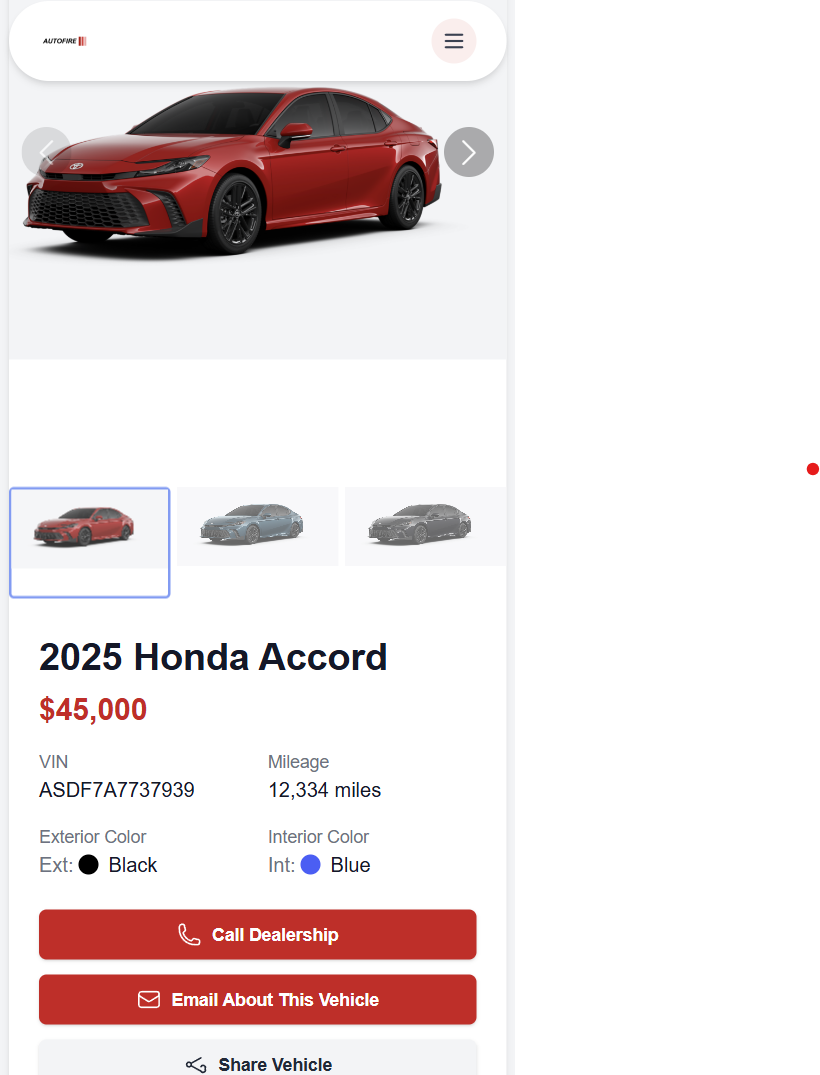 Your website is optimized for all screen sizes
## SEO and Discoverability
Your dealer website is built with search engine optimization in mind:
* **Schema.org markup**: Vehicle listings include structured data that helps them appear in Google search results
* **Local business schema**: Your dealership information is marked up for better local search visibility
* **Mobile-friendly design**: Important for Google rankings as more users search on mobile devices
* **Fast loading speeds**: Optimized code and images improve search ranking and user experience
* **Clean URLs**: Simple, readable URL structure makes pages more discoverable
* **Custom meta descriptions**: Help search engines understand your dealership's focus
## Making Updates
Any changes you make to your dealership information, inventory, or website settings are automatically reflected on your live website. There's no need to manually publish or update your site.
While most changes appear immediately, some updates may take a few minutes to propagate across all systems.
## Inventory limits
**Free Kickstart** limits each dealership to up to 10 vehicle listings. **AutoFire Pro** raises the cap to up to 50. Sold vehicles still count toward your plan limit—remove or archive sold units to make room for new stock.
## Pro-only shopper tools
On an active Pro subscription, vehicle detail pages also include:
* Lead and test drive request forms
* CARFAX button (when your dealer ID is configured in Dealer Info)
* AI site chatbot (when enabled in Website Settings → Chatbot)
All plans include an **estimated monthly payment calculator** on vehicle detail pages so shoppers can adjust down payment, APR, and term.
## Next steps
[Customize your website](/dealer-guide/customization) — logo, colors, hero, and SEO description.
[Custom domains](/dealer-guide/domains) — point your .com at AutoFire.
[FireCompare](/dealer-guide/firecompare) — research pages for comparison intent.
Branding and SEO copy
Research hub and comparison pages (Pro)
Syndicate inventory to third parties (Pro)
Work inbound interest (Pro)
Your website is optimized for all screen sizes
## SEO and Discoverability
Your dealer website is built with search engine optimization in mind:
* **Schema.org markup**: Vehicle listings include structured data that helps them appear in Google search results
* **Local business schema**: Your dealership information is marked up for better local search visibility
* **Mobile-friendly design**: Important for Google rankings as more users search on mobile devices
* **Fast loading speeds**: Optimized code and images improve search ranking and user experience
* **Clean URLs**: Simple, readable URL structure makes pages more discoverable
* **Custom meta descriptions**: Help search engines understand your dealership's focus
## Making Updates
Any changes you make to your dealership information, inventory, or website settings are automatically reflected on your live website. There's no need to manually publish or update your site.
While most changes appear immediately, some updates may take a few minutes to propagate across all systems.
## Inventory limits
**Free Kickstart** limits each dealership to up to 10 vehicle listings. **AutoFire Pro** raises the cap to up to 50. Sold vehicles still count toward your plan limit—remove or archive sold units to make room for new stock.
## Pro-only shopper tools
On an active Pro subscription, vehicle detail pages also include:
* Lead and test drive request forms
* CARFAX button (when your dealer ID is configured in Dealer Info)
* AI site chatbot (when enabled in Website Settings → Chatbot)
All plans include an **estimated monthly payment calculator** on vehicle detail pages so shoppers can adjust down payment, APR, and term.
## Next steps
[Customize your website](/dealer-guide/customization) — logo, colors, hero, and SEO description.
[Custom domains](/dealer-guide/domains) — point your .com at AutoFire.
[FireCompare](/dealer-guide/firecompare) — research pages for comparison intent.
Branding and SEO copy
Research hub and comparison pages (Pro)
Syndicate inventory to third parties (Pro)
Work inbound interest (Pro)