> ## Documentation Index
> Fetch the complete documentation index at: https://docs.goautofire.com/llms.txt
> Use this file to discover all available pages before exploring further.
# Setting Up Your Dealership
> Configure your dealership profile and customize your website
# Setting Up Your Dealership
This guide walks through dealership profile setup—the first step in the [Dealer Guide](/dealer-guide/setup) workflow after [quickstart](/quickstart).
## In this guide
* Dealer Info: name, contact, and address
* Website branding basics (logo, colors, hero, SEO description)
* Google Business Profile alignment
* Optional Pro settings (CARFAX, chatbot, Distribution)
**Free Kickstart** — up to 10 listings, subdomain, SEO pages, customization, payment calculator on VDPs.
**AutoFire Pro** (\$99.99/mo) — up to 50 listings, FireCompare™, leads, test drives, CARFAX, custom domain, VIN decoder, Distribution feeds, team roles, AI chatbot, priority support.
## Accessing Dealer Settings
After logging in to your AutoFire account, navigate to the Dashboard and look for the "Dealer Info" section in the sidebar. This is where you'll manage your dealership's basic information.
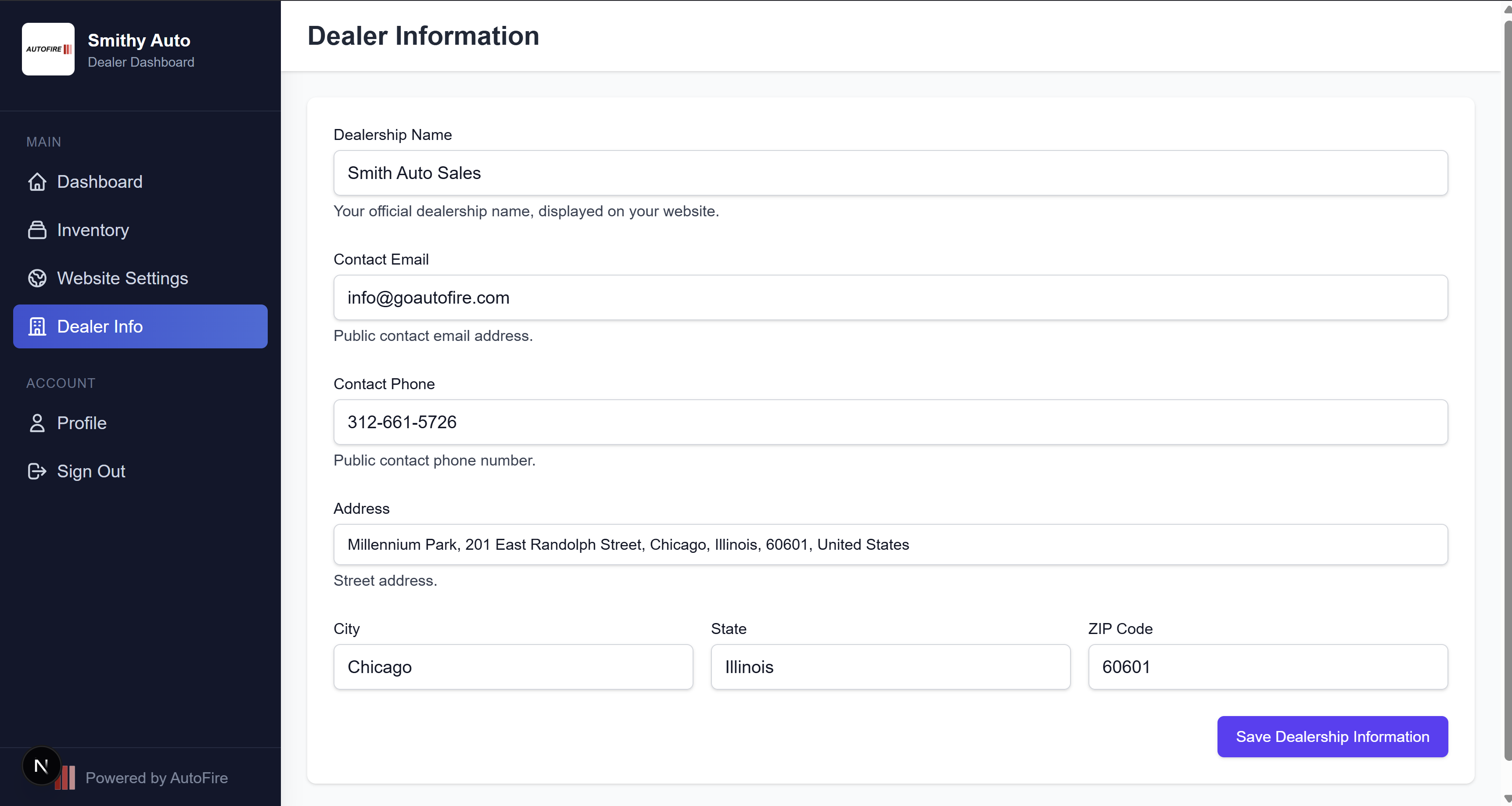 Navigate to Dealer Info in the sidebar
## Basic Information
Enter your dealership's official business name. This will be displayed prominently on your website.
Use your full business name as registered to maintain brand consistency and improve search engine visibility.
Enter your dealership's primary contact email and phone number. These will be displayed on your website and used for customer inquiries.
Make sure your contact information is accurate and monitored regularly. Missed inquiries can mean missed sales opportunities!
Enter your dealership's physical address, including city, state, and ZIP code. This information is used for the map integration on your website.
The address autocomplete feature helps ensure your address is formatted correctly for mapping services. This address will be used in schema markup for local SEO.
## Website Customization
Visual elements like your logo, colors, and hero image are managed in the Website Settings section.
Go to "Website" in the sidebar to access customization options.
Upload your dealership's logo to brand your website. Recommended size: 200x200 pixels.
Use a PNG format with transparent background for the best presentation across your site.
Select your primary and secondary colors to match your branding.
Your primary color will be used for navigation elements, buttons, and key visual elements.
Upload a hero image for your homepage banner.
Choose a high-quality image of your dealership or featured inventory to create a strong first impression.
Add a website description to improve search engine visibility.
Include relevant keywords like your location, specialties, and brands you carry. This description will appear in search engine results.
## Google My Business Integration
For maximum visibility in local searches and Google Maps, connect your AutoFire website with Google My Business.
Log in to your Google My Business account or create one if you don't have it yet.
Set your website URL to your AutoFire subdomain (yourdealership.goautofire.com).
Complete Google's verification process if you haven't already.
Ensure your business hours, phone number, and address match between GMB and your AutoFire website.
When your GMB listing is properly connected to your AutoFire website, your vehicle inventory can benefit from enhanced visibility in Google searches.
## Pro settings (optional)
If you are on **AutoFire Pro**, configure these from the dashboard when you are ready:
In **Dealer Info**, enter your CARFAX dealer partner ID and enable CARFAX. See the [CARFAX guide](/dealer-guide/carfax) for prerequisites and troubleshooting.
In **Website Settings → Chatbot**, enable the public site assistant. Each AI reply consumes 0.1 Fuel credit; rate limits apply per visitor and session.
Open **Distribution** to enable feed integrations—see the [Distribution guide](/dealer-guide/distribution).
## Saving Your Changes
For each section, click the "Save Changes" button at the bottom of the form. Your changes will be applied to your dealer website immediately.
## Next steps
[Inventory management](/dealer-guide/inventory) — publish vehicles that power your public site.
[Inventory imports](/dealer-guide/imports) — CSV or 1-click migration instead of manual entry.
[Your dealer website](/dealer-guide/website) — structure, SEO, and sharing.
Add and manage vehicle listings
Preview and share your live site
Deeper branding and SEO copy
Upgrade to Pro for leads, domains, and feeds
Navigate to Dealer Info in the sidebar
## Basic Information
Enter your dealership's official business name. This will be displayed prominently on your website.
Use your full business name as registered to maintain brand consistency and improve search engine visibility.
Enter your dealership's primary contact email and phone number. These will be displayed on your website and used for customer inquiries.
Make sure your contact information is accurate and monitored regularly. Missed inquiries can mean missed sales opportunities!
Enter your dealership's physical address, including city, state, and ZIP code. This information is used for the map integration on your website.
The address autocomplete feature helps ensure your address is formatted correctly for mapping services. This address will be used in schema markup for local SEO.
## Website Customization
Visual elements like your logo, colors, and hero image are managed in the Website Settings section.
Go to "Website" in the sidebar to access customization options.
Upload your dealership's logo to brand your website. Recommended size: 200x200 pixels.
Use a PNG format with transparent background for the best presentation across your site.
Select your primary and secondary colors to match your branding.
Your primary color will be used for navigation elements, buttons, and key visual elements.
Upload a hero image for your homepage banner.
Choose a high-quality image of your dealership or featured inventory to create a strong first impression.
Add a website description to improve search engine visibility.
Include relevant keywords like your location, specialties, and brands you carry. This description will appear in search engine results.
## Google My Business Integration
For maximum visibility in local searches and Google Maps, connect your AutoFire website with Google My Business.
Log in to your Google My Business account or create one if you don't have it yet.
Set your website URL to your AutoFire subdomain (yourdealership.goautofire.com).
Complete Google's verification process if you haven't already.
Ensure your business hours, phone number, and address match between GMB and your AutoFire website.
When your GMB listing is properly connected to your AutoFire website, your vehicle inventory can benefit from enhanced visibility in Google searches.
## Pro settings (optional)
If you are on **AutoFire Pro**, configure these from the dashboard when you are ready:
In **Dealer Info**, enter your CARFAX dealer partner ID and enable CARFAX. See the [CARFAX guide](/dealer-guide/carfax) for prerequisites and troubleshooting.
In **Website Settings → Chatbot**, enable the public site assistant. Each AI reply consumes 0.1 Fuel credit; rate limits apply per visitor and session.
Open **Distribution** to enable feed integrations—see the [Distribution guide](/dealer-guide/distribution).
## Saving Your Changes
For each section, click the "Save Changes" button at the bottom of the form. Your changes will be applied to your dealer website immediately.
## Next steps
[Inventory management](/dealer-guide/inventory) — publish vehicles that power your public site.
[Inventory imports](/dealer-guide/imports) — CSV or 1-click migration instead of manual entry.
[Your dealer website](/dealer-guide/website) — structure, SEO, and sharing.
Add and manage vehicle listings
Preview and share your live site
Deeper branding and SEO copy
Upgrade to Pro for leads, domains, and feeds