> ## Documentation Index
> Fetch the complete documentation index at: https://docs.goautofire.com/llms.txt
> Use this file to discover all available pages before exploring further.
# Inventory Management
> Add and manage vehicle listings in your dealership inventory
# Inventory Management
Your inventory is the source of truth for your public vehicle pages, optional imports, and Pro distribution feeds.
## In this guide
* Add and edit vehicles with photos, pricing, and status
* Search, filter, and manage sold/pending units
* SEO and Google Vehicle Listings fundamentals
* Best practices for photos, pricing, and descriptions
Free Kickstart limits each dealership to up to 10 vehicle listings. On Pro you can list up to 50 vehicles.
## Accessing Your Inventory
From your dashboard, click on the "Inventory" option in the sidebar navigation. This will take you to the inventory management page where you can view all your current vehicle listings.
Already have your inventory in Frazer or another DMS? You can sync it into
AutoFire automatically with the [Inventory Imports](/dealer-guide/imports)
flow instead of adding vehicles one by one.
## Adding a New Vehicle
Click the "Add Vehicle" button in the top right corner of the inventory page.
Complete the vehicle information form with the following details:
* **Make, Model, and Trim** - The vehicle's manufacturer, model name, and trim level
* **Year** - The vehicle's model year
* **Price** - The listing price in USD
* **Mileage** - The vehicle's current odometer reading
* **VIN** - The Vehicle Identification Number (if available). On Pro, use **VIN decode** in the add flow to auto-fill year, make, model, and trim.
* **Exterior and Interior Colors** - Select from the available color options
All this information is used to create structured data (schema markup) that helps your vehicles appear in Google search results.
Write a detailed description of the vehicle. Include key features, condition information, and any selling points that would interest potential buyers.
A thorough, well-written description can significantly improve buyer interest and search engine visibility. Include details about the vehicle's condition, features, history, and any recent maintenance or upgrades.
Upload multiple high-quality photos of the vehicle. You can drag and drop images or use the file browser.
The first photo you upload will be used as the thumbnail image in listings, so make sure it's a clear, attractive shot of the vehicle.
Choose the appropriate status for the vehicle:
* **Available** - Ready for sale and visible on your site
* **Pending** - In the process of being sold but not yet finalized
* **Sold** - Transaction completed (these won't display on your site)
Click "Save Vehicle" to publish your listing. It will immediately appear on your dealership website.
## Managing Existing Listings
From the inventory management page, you can:
* **Search** for specific vehicles using the search bar
* **Filter** vehicles by status (Available, Pending, Sold)
* **Edit** existing listings by clicking on them
* **Change status** of vehicles as they move through your sales process
* **Delete** listings you no longer want to keep
## Vehicle Status Flow
The typical flow for a vehicle through your inventory system:
1. **Add** a new vehicle with "Available" status
2. When a customer commits to purchase, update to "Pending"
3. Once the sale is complete, change to "Sold"
Vehicles marked as "Sold" remain in your inventory management system for record-keeping but are not displayed on your public-facing website. They still count toward your 10-vehicle limit.
## SEO Benefits
Each vehicle listing you create is optimized for search engines:
* **Structured data markup**: Helps Google understand and index your vehicles
* **Unique URLs**: Each vehicle gets its own dedicated URL (yourdealer.goautofire.com/inventory/{vin})
* **Mobile optimization**: All vehicle pages are fully responsive for mobile users
* **Fast loading**: Optimized images and code ensure quick page loading
* **Google compatibility**: When your GMB is linked to your AutoFire site, your inventory can appear in relevant searches
### Google Vehicle Listings Integration
AutoFire works with [Google Vehicle Listings](https://developers.google.com/vehicle-listings) to help your inventory appear directly in Google search results:
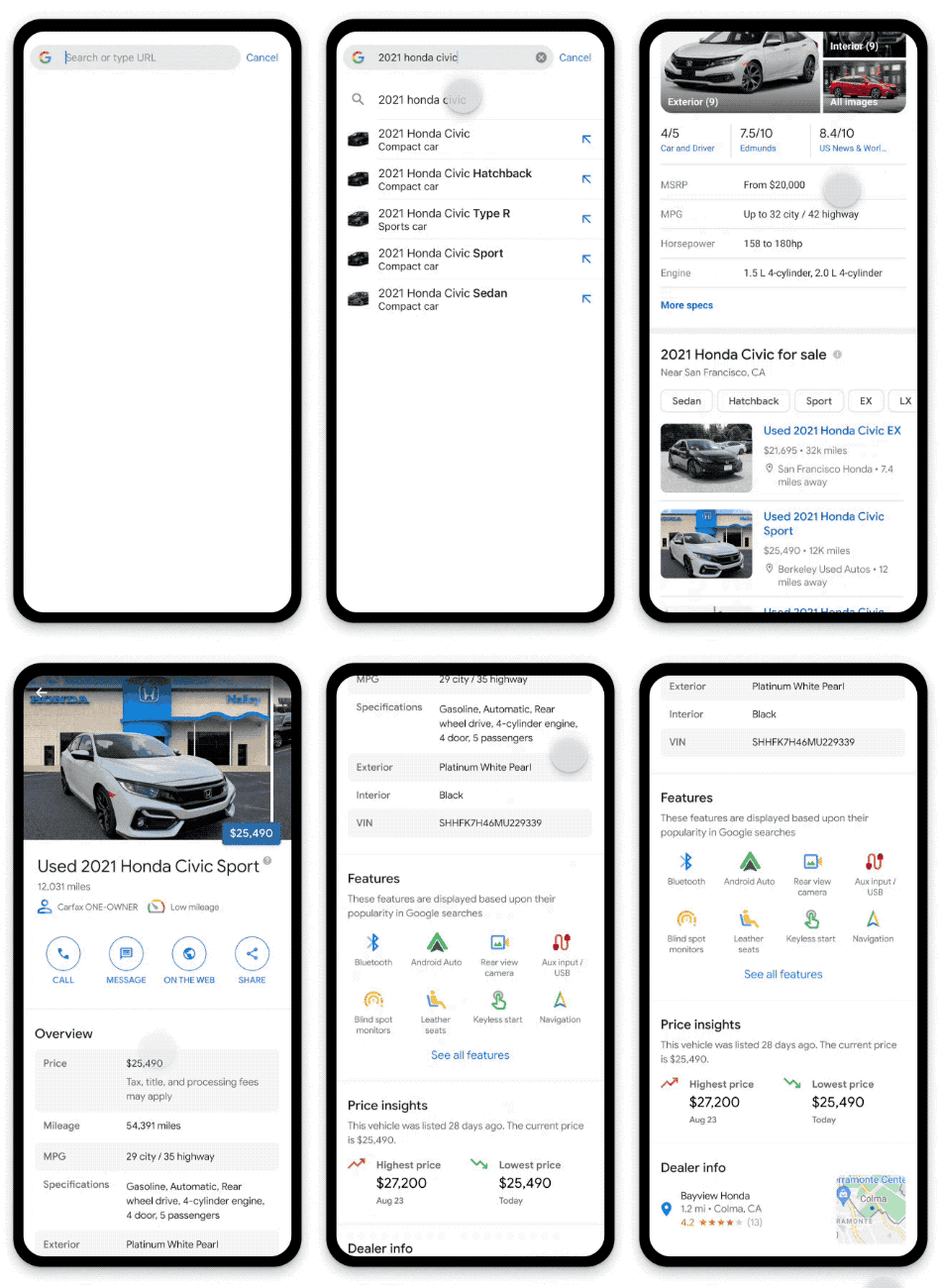
Example of how vehicles can appear in Google search results
* AutoFire automatically implements the required [structured data markup](https://developers.google.com/vehicle-listings/onboarding-guide#structured_data_markup) on all vehicle detail pages
* No additional technical setup is needed on your part for the structured data implementation
* For maximum benefit, ensure your dealership is properly set up on Google My Business
* Follow the [Google Vehicle Listings onboarding guide](https://developers.google.com/vehicle-listings/onboarding-guide) for complete setup instructions
On **AutoFire Pro**, enable outbound inventory feeds from [Distribution](/dealer-guide/distribution)—Google (XML), Meta/Facebook, Cars.com, AutoTrader, and CarGurus (CSV)—so third-party channels stay aligned with the same stock you show on your site.
## Best Practices
For the best presentation of your vehicles:
* Use high-resolution, well-lit images
* Include exterior shots from multiple angles
* Add interior views showing seating, dashboard, and cargo areas
* Highlight any special features or custom additions
* Aim for utilizing all 6 possible photo spots per vehicle
* Ensure the first photo is the most appealing (it will be used as the thumbnail)
Consider these factors when setting vehicle prices:
* Comparable vehicles in your market
* Vehicle condition, mileage, and history
* Special features or upgrades
* Your desired profit margin
* Room for negotiation (if applicable)
Create compelling descriptions by:
* Leading with the vehicle's strongest selling points
* Including key specifications and features
* Mentioning recent maintenance or improvements
* Being honest about condition
* Using bullet points for easy scanning
* Avoiding all caps and excessive punctuation
* Including relevant keywords that buyers might search for
With Free Kickstart (10 vehicles) consider these strategies:
* Focus on your most profitable or distinctive vehicles
* Ensure a variety of price points to attract different buyers
* Regularly update your inventory as vehicles sell
* Remove sold vehicles promptly to make room for new listings
* Feature vehicles that represent your dealership's specialty or focus
Remember that every detail you add to a vehicle listing improves its visibility in search results and helps potential customers find your dealership.
## Next steps
[Inventory imports](/dealer-guide/imports) — sync from Frazer or another CSV export.
[Your dealer website](/dealer-guide/website) — how VDPs and SEO appear to shoppers.
[CARFAX integration](/dealer-guide/carfax) — history links on vehicle pages.
CSV and migration workflows
Vehicle detail pages and sharing
Syndicate the same stock (Pro)
Inventory capabilities and plan limits